Keeping your Ghost theme in GitHub gives you version history, reviews and one-push deploys. This guide shows two ways to wire it up: the official Admin API action, and the SSH-based workflow I use on my self-hosted blog.
Update (October 2026): the first version of this post recommended storing a Ghost Admin API key in GitHub. My site was later compromised through an unpatched Ghost vulnerability that leaked an Admin API key (CVE-2026-26980). I now deploy over SSH only, and the admin API isn't reachable from the internet at all. This post reflects that. The full story: My Hardened Raspberry Pi Still Got Hacked.
Why Deploy Your Theme from GitHub?
- Version history for every template change, with easy rollback.
- Review changes before they go live.
- One push: validated, deployed and health-checked automatically.

Prerequisites
- A Ghost site: Ghost(Pro) for option A, or self-hosted with SSH access for option B.
- A GitHub repository containing your theme folder (for example
content/themes/my-theme). - Basic familiarity with Git and the command line.
Option A: The Official Action (Ghost(Pro) or No SSH Access)
Ghost's official action uploads the theme through the Admin API. It's the only option if you can't reach the server over SSH.
 TryGhost

- In Ghost Admin, go to Settings → Integrations and click Add custom integration. Name it something like GitHub Actions.

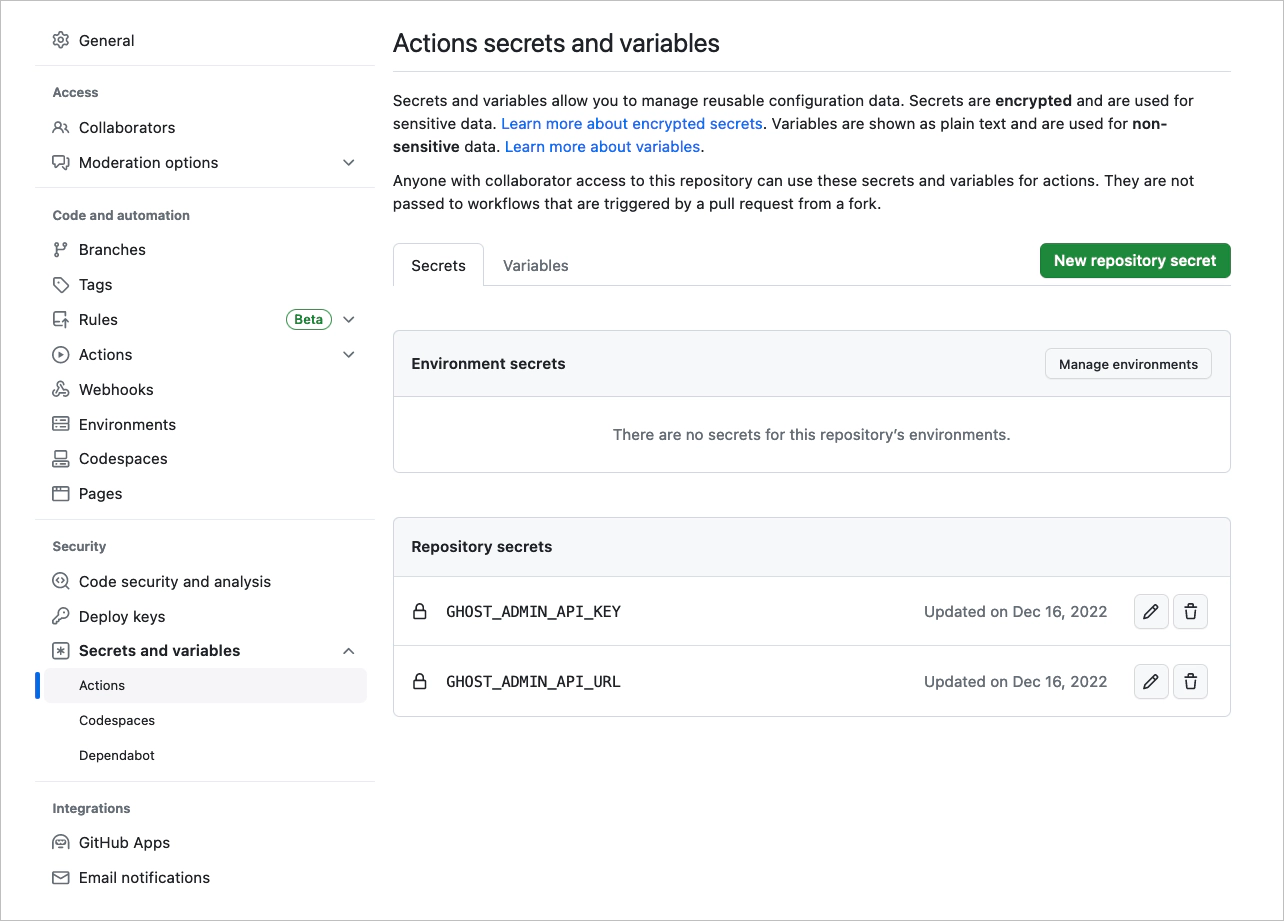
Copy the Admin API URL and key into your repository's secrets (Settings → Secrets and variables → Actions) as GHOST_ADMIN_API_URL and GHOST_ADMIN_API_KEY.
Then add .github/workflows/deploy-theme.yml:
name: Deploy Ghost Theme

on:
  push:
    branches: [main]

jobs:
  deploy:
    runs-on: ubuntu-latest
    steps:
      - uses: actions/checkout@v4

      - name: Deploy theme to Ghost
        uses: TryGhost/action-deploy-theme@v1.6.6
        with:
          api-url: ${{ secrets.GHOST_ADMIN_API_URL }}
          api-key: ${{ secrets.GHOST_ADMIN_API_KEY }}
This is the method Ghost documents on its GitHub integration page. The action zips the repository root, so it assumes the repository is the theme. If your theme lives in a subfolder, zip it in an earlier step and pass the zip with the action's file input.
Treat that key like the password to your whole site. An Admin API key has full admin access: it can change themes, settings and content. Use a dedicated integration, keep the key only in GitHub secrets, rotate it from time to time, and delete the integration when you stop using it. Unused integrations with live keys are exactly what attackers look for.
Option B: Self-Hosted, Deploy over SSH (My Setup)
If you host Ghost yourself, you don't need an Admin API key at all. Ghost loads themes from disk when it starts, so the workflow copies the theme to the server and restarts Ghost (about 10 to 20 seconds of downtime). It:
- Validates the theme with gscan and stops on errors.
- Zips it and copies it to the server.
- Swaps it into content/themes/, keeping the previous version.
- Restarts Ghost and checks that it answers.
- Restores the previous theme automatically if it doesn't.
It needs four secrets: DEPLOY_HOST, DEPLOY_USER, DEPLOY_PORT and DEPLOY_SSH_KEY. Use a dedicated key pair for deployments, not your personal key.
name: Deploy Theme

on:
  push:
    branches: [main]
    paths:
      - 'content/themes/my-theme/**'
  workflow_dispatch:

jobs:
  deploy:
    runs-on: ubuntu-24.04
    steps:
      - uses: actions/checkout@v4

      - uses: actions/setup-node@v4
        with:
          node-version: '22'

      # Validate before shipping: stop on gscan errors
      - name: Validate theme with gscan
        run: |
          npx --yes gscan content/themes/my-theme | tee gscan.txt
          if grep -qE 'has [0-9]+ (fatal )?errors?' gscan.txt; then
            echo "::error::gscan found errors - not deploying"
            exit 1
          fi

      - name: Package theme
        run: |
          cd content/themes
          zip -qr "$GITHUB_WORKSPACE/theme.zip" my-theme -x 'my-theme/node_modules/*'

      - name: Copy theme to the server
        uses: appleboy/scp-action@v0.1.7
        with:
          host: ${{ secrets.DEPLOY_HOST }}
          username: ${{ secrets.DEPLOY_USER }}
          key: ${{ secrets.DEPLOY_SSH_KEY }}
          port: ${{ secrets.DEPLOY_PORT }}
          source: theme.zip
          target: /home/deploy/ghost/

      - name: Install theme, restart Ghost, roll back on failure
        uses: appleboy/ssh-action@v1.2.0
        with:
          host: ${{ secrets.DEPLOY_HOST }}
          username: ${{ secrets.DEPLOY_USER }}
          key: ${{ secrets.DEPLOY_SSH_KEY }}
          port: ${{ secrets.DEPLOY_PORT }}
          script: |
            set -e
            cd /home/deploy/ghost
            rm -rf /tmp/theme-new /tmp/theme-prev
            unzip -q theme.zip -d /tmp/theme-new && rm -f theme.zip
            cp -a content/themes/my-theme /tmp/theme-prev
            rsync -a --delete /tmp/theme-new/my-theme/ content/themes/my-theme/

            healthy() {
              for i in $(seq 1 40); do
                curl -fs -o /dev/null http://127.0.0.1:8080/ && return 0
                sleep 3
              done
              return 1
            }

            docker compose restart ghost
            if ! healthy; then
              echo "Ghost did not come back - restoring the previous theme"
              rsync -a --delete /tmp/theme-prev/ content/themes/my-theme/
              docker compose restart ghost
              exit 1
            fi
            rm -rf /tmp/theme-new /tmp/theme-prev
This assumes Ghost runs with Docker Compose in /home/deploy/ghost, with Ghost published on 127.0.0.1:8080. Adjust the paths and the theme name to your setup. The actions are pinned to versions rather than a branch, so a change upstream can't silently alter what runs against your server.
Test and Verify the Workflow
- Push changes to the
mainbranch of your theme repository. - Go to the Actions tab in your GitHub repository to monitor the workflow execution.
- Verify that the theme is successfully deployed to your Ghost instance.
Bonus Tip: Rolling Back
Every theme version lives in Git, so rolling back is a git revert and a push. With option B, the workflow also puts the previous theme back on its own if Ghost doesn't come up after the restart.